
Overview
A public site page allows users or external parties to submit reports related to a specific site. A site QR code can be printed and placed at the site for easy access.
Steps to view public site page
Go to Manage.
Open Sites.
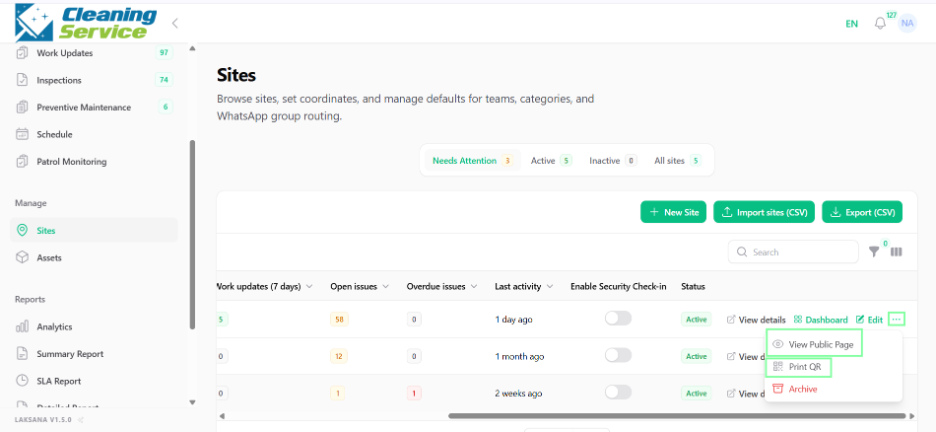
Select the relevant site.
Click View Public Page.
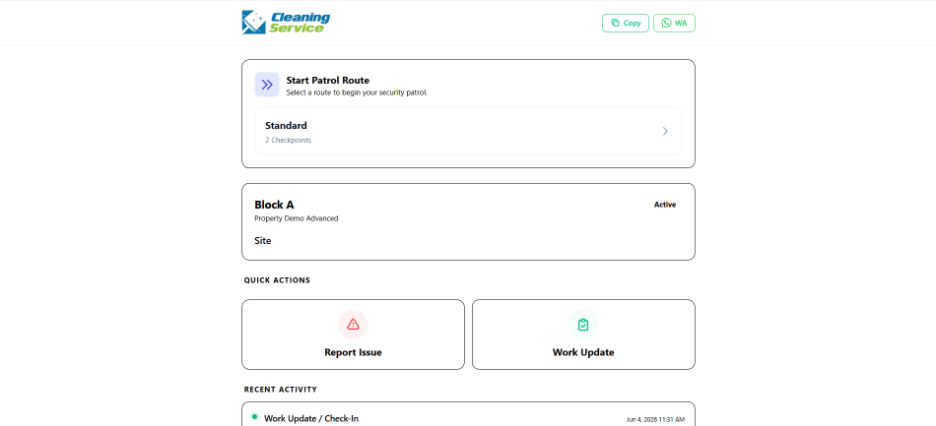
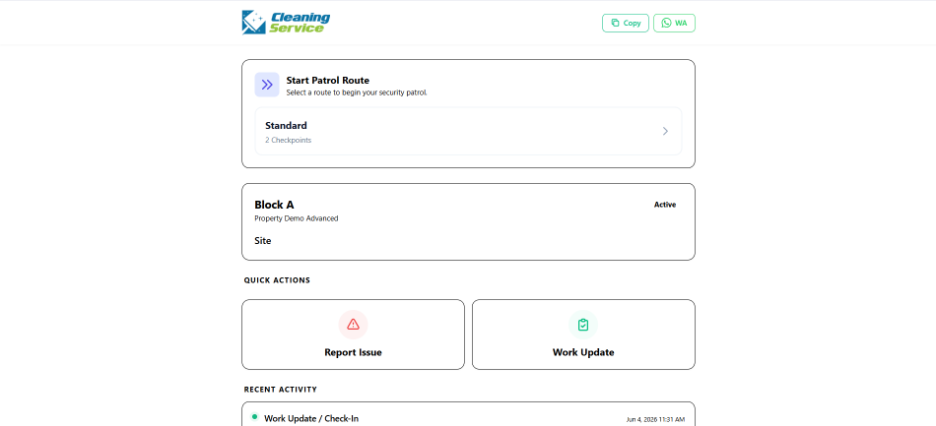
Review the public page.
Steps to print site QR
Go to Manage.
Open Sites.
Select the relevant site.
Click Print QR.
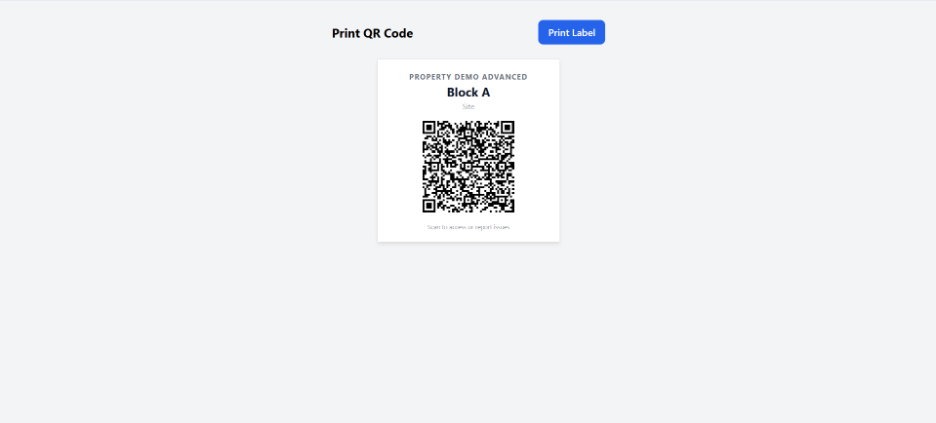
Print and place the QR code at the site.
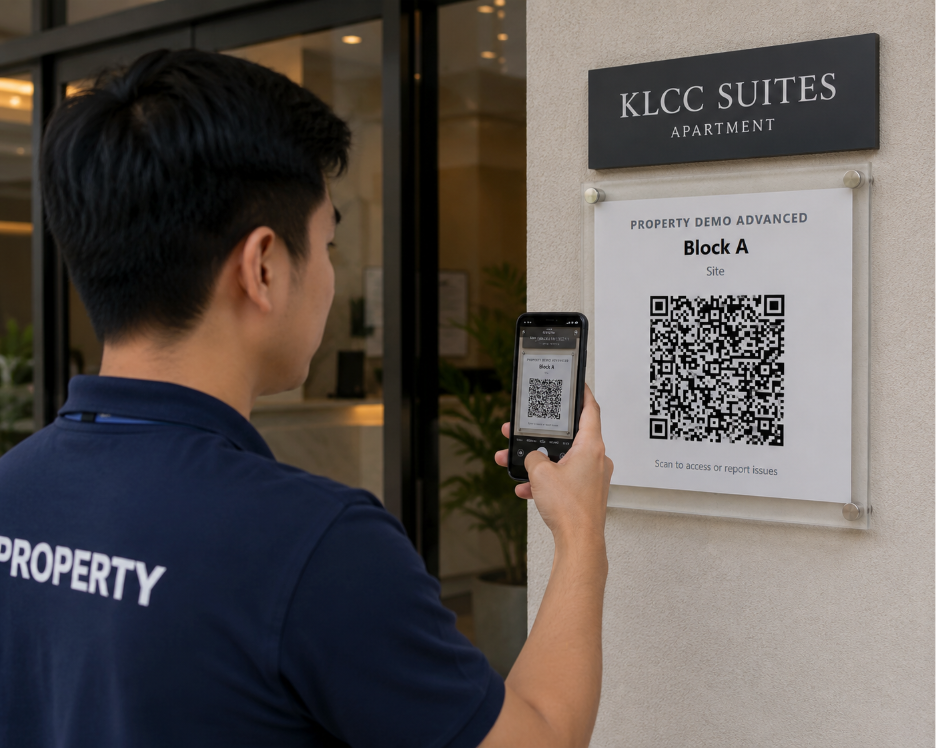
Example use case
A building management team prints a QR code and places it at the lobby. Visitors or residents can scan the QR code to submit site-related issues.