
Overview
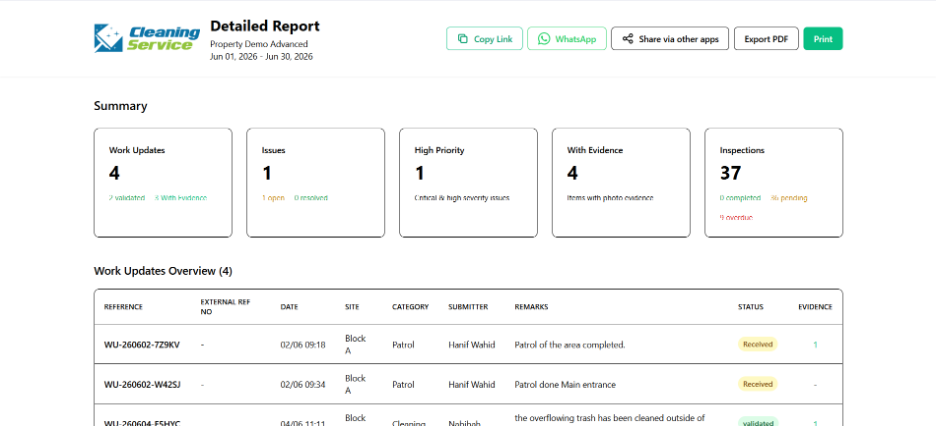
The Detailed Report provides a more complete report that includes summary, issue list, work update list, inspection list, and evidence details.
Steps
Go to Reports.
Open Detailed Report.
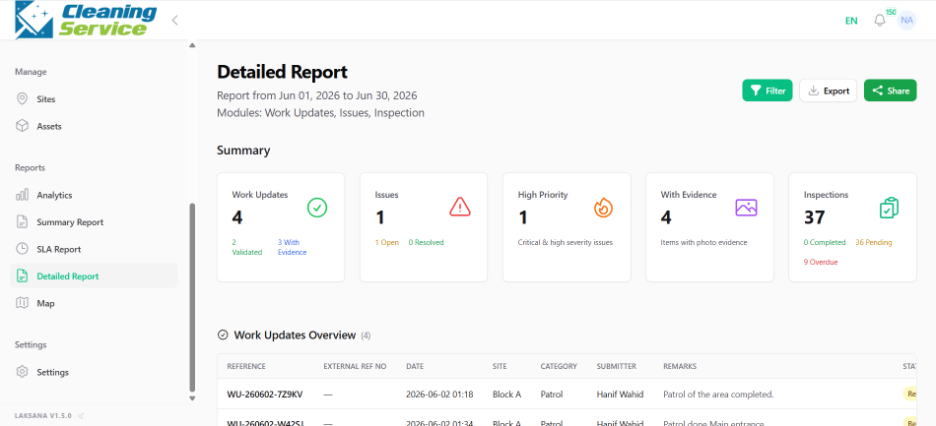
Select the date range.
Apply filters such as site, category, asset, report data type, created by, assignee, or team.
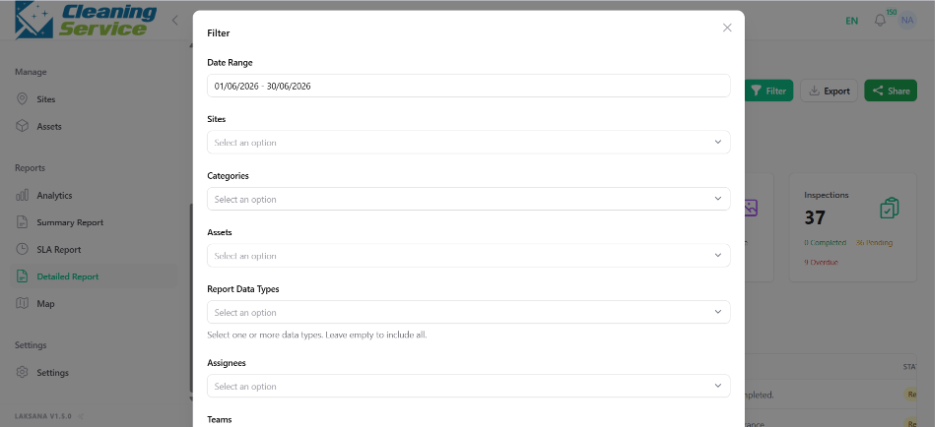
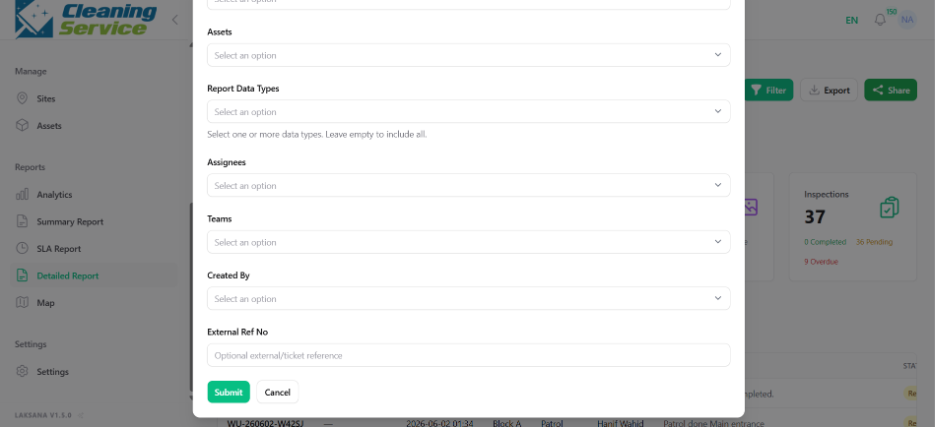
Review the filtered results.
Click Export to generate a PDF.
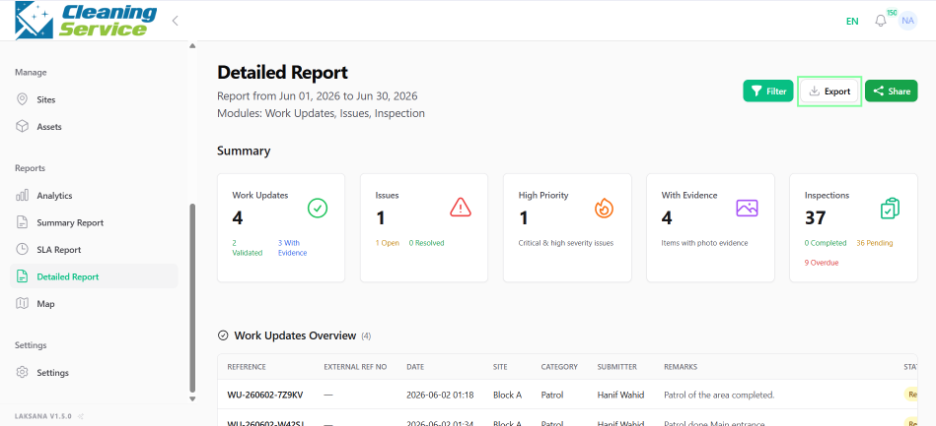
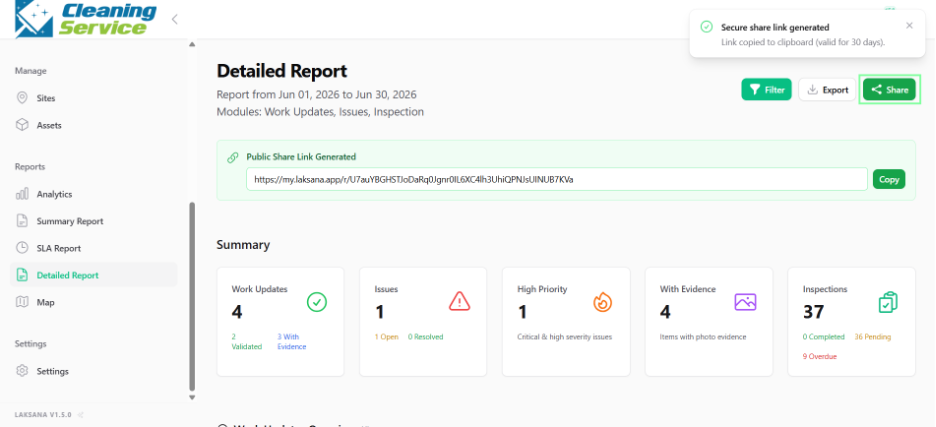
Click Share to generate a public link, if required.
Report structure
A detailed report may include:
Summary.
List of issues.
List of work updates.
List of inspections.
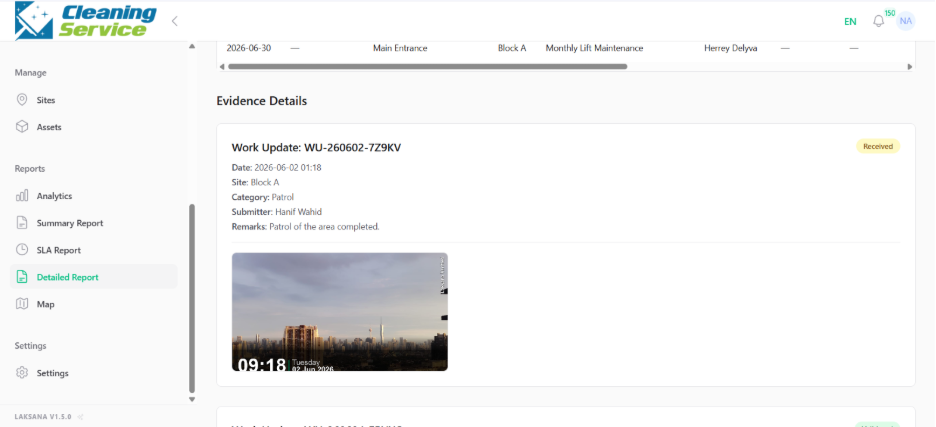
Evidence details for work updates and issues.
Tips
Use Detailed Report when photo evidence is important.
Use it for monthly reporting, client reporting, or audit support.
Apply filters before exporting to avoid overly large reports.